For most people around the globe, Gmail is the default way of checking their emails, thanks to its ease of use, features, and much-improved spam detection. Despite its popularity and convenience, there doesn’t seem to be a Gmail app for Windows, meaning you have to rely on third-party clients such as Outlook instead. However, contrary to popular opinion, there is actually a way you can install the Gmail app on your Windows laptop, albeit with a twist. In this article, I will show you how.
Install Gmail on Windows
Let’s get one thing straight: Google doesn’t offer an official Gmail app for Windows or any other desktop operating system. While the company does allow users to add their Google account to third-party clients, this can be inconvenient since they have to adapt to a new layout.
So, if there isn’t a Gmail app for Windows, you might wonder how to install one. The answer is Progressive Web Apps (PWA). In 2015, Google announced a new category of apps that, despite working on web architecture, provide an app-like experience. Users can install such apps on their home screen, and they look and function similarly to an actual app. Additionally, as you may have guessed, this also allows users to make an app for any website they want.
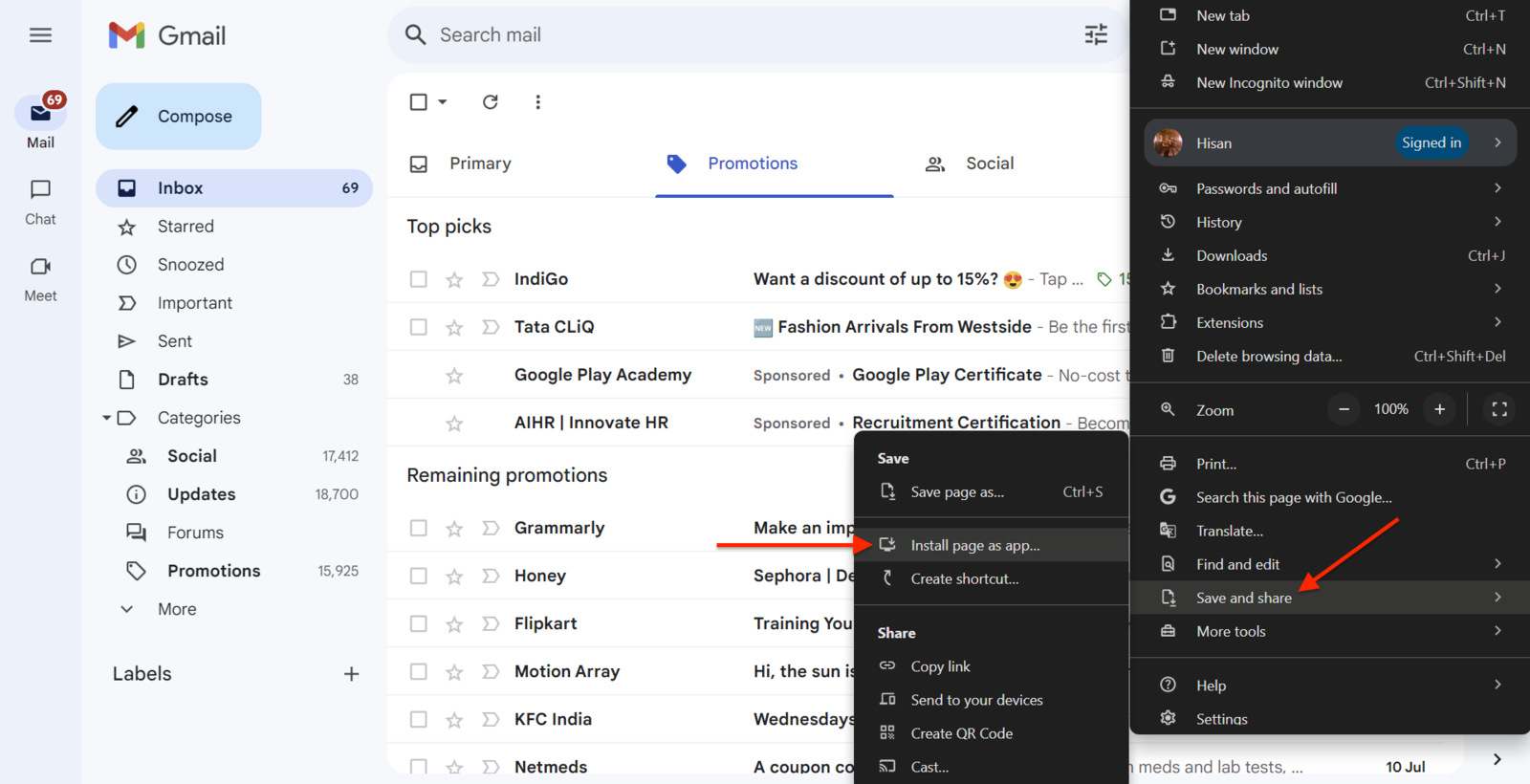
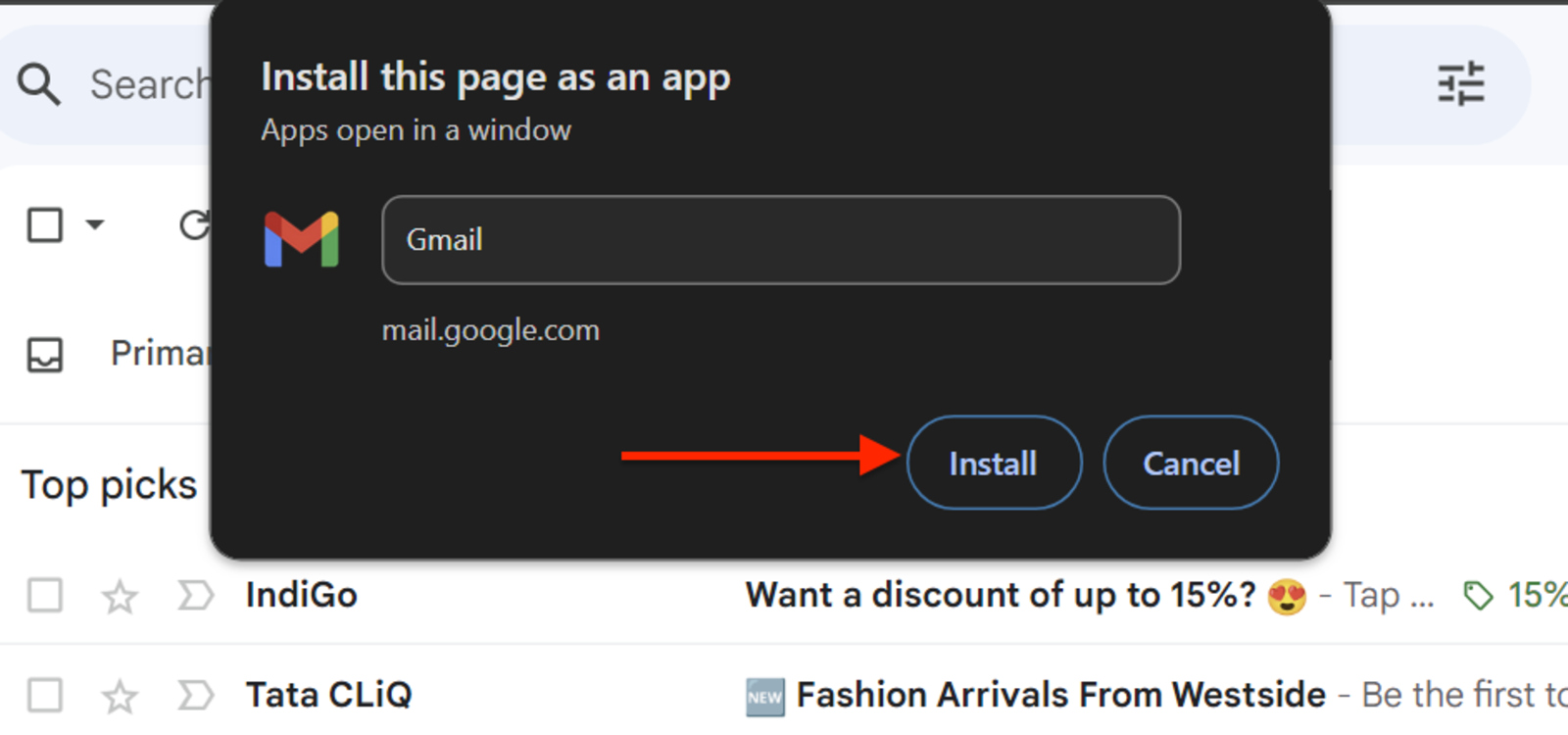
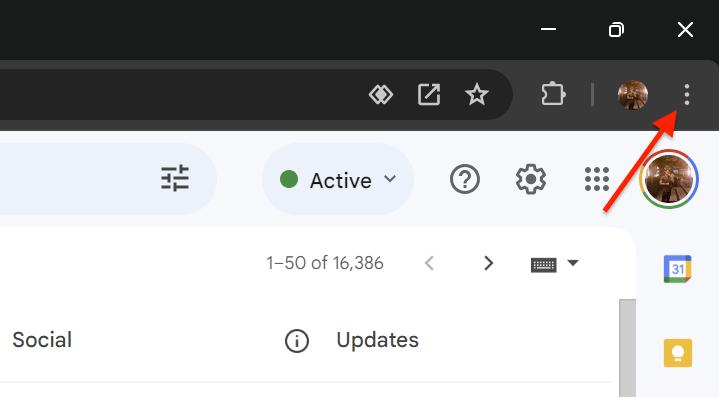
Now that we have the explanation out of the way let’s get straight into how you may install Gmail on your Windows machine. Here is how:
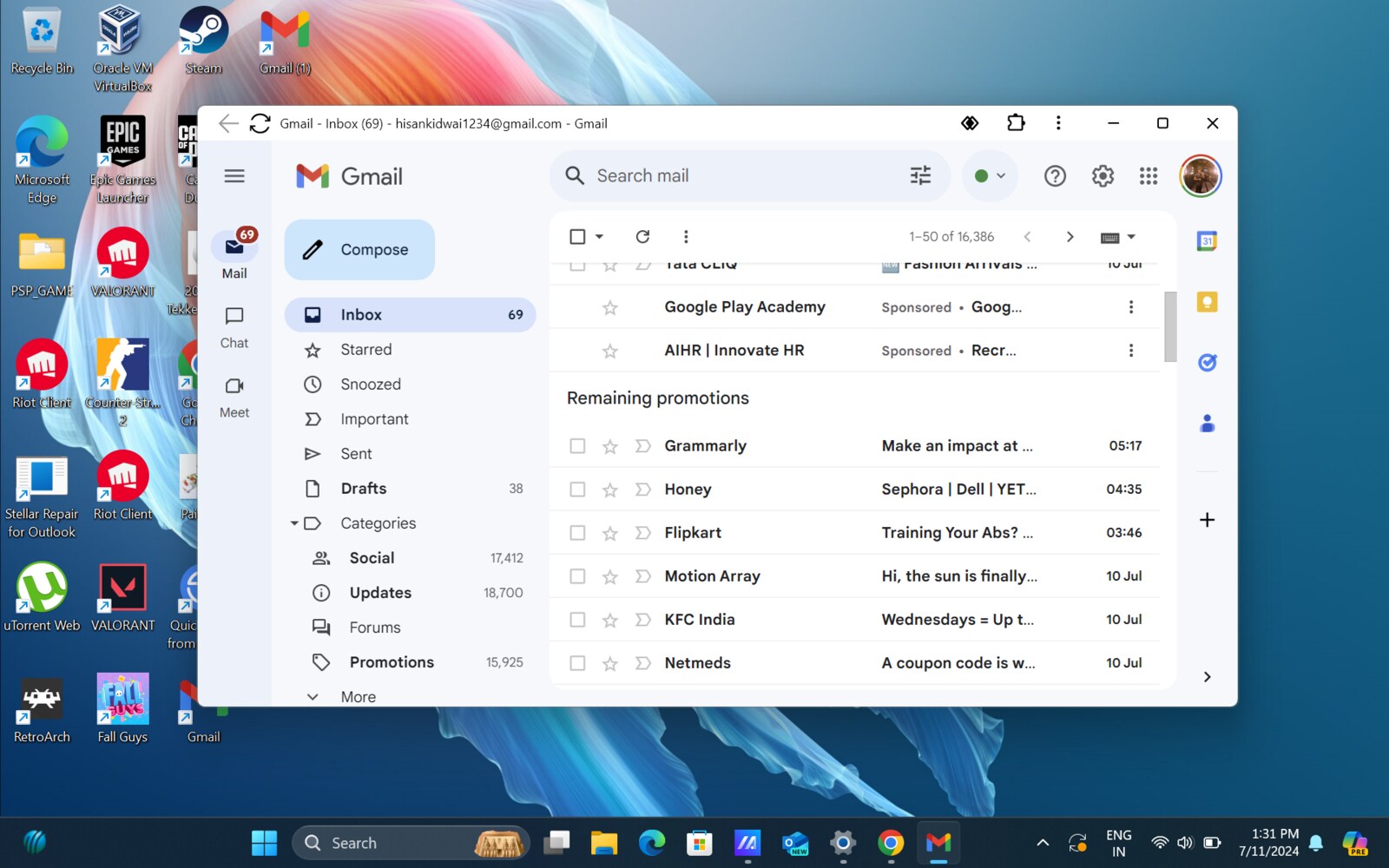
That’s it! Now, you may open Gmail like any other application on your laptop.
Uninstall the app
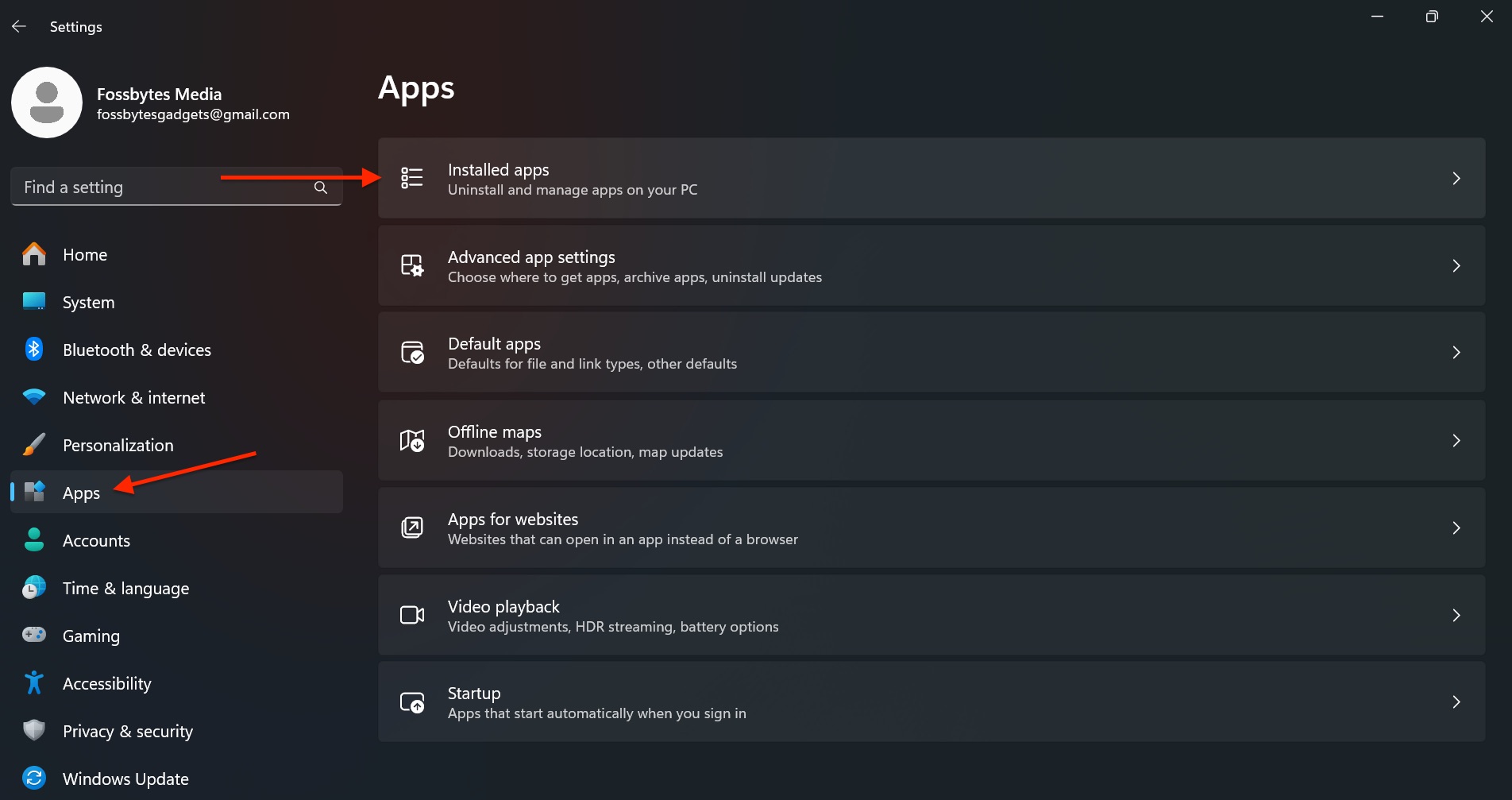
If you want to uninstall the Gmail app from your device, the process is pretty straightforward. Here is how: