Out of all Windows 10 problems, one common issue that many users face is Windows 10 brightness control not working on their machines. Due to this bug, users can’t increase or decrease the brightness levels on their Windows 10 PC.
This adds to problems like the 100% disk usage error that sucks users’ hard drives or the ntoskrnl.exe process that makes your PC gasp for air. Not to mention, Microsoft has always been criticized for implementing cheap telemetry practices into its OS.

You may think that this is no big deal, but imagine your computer’s battery is about to die or picture that you’re struggling to watch a Game of Thrones episode that makes you wonder if the producers forgot to change their camera settings because it’s too dark, and you can’t change the Windows 10 brightness. There’s no doubt that you will feel like punching your screen.
Nothing could be as annoying as the brightness control not working in Windows 10. But there is a solution available to help you fix the brightness control not working issue. Please note that these are general fixes that may not work if the problem is specific to your device.

How To Fix Windows 10 Brightness Not Working Issue?
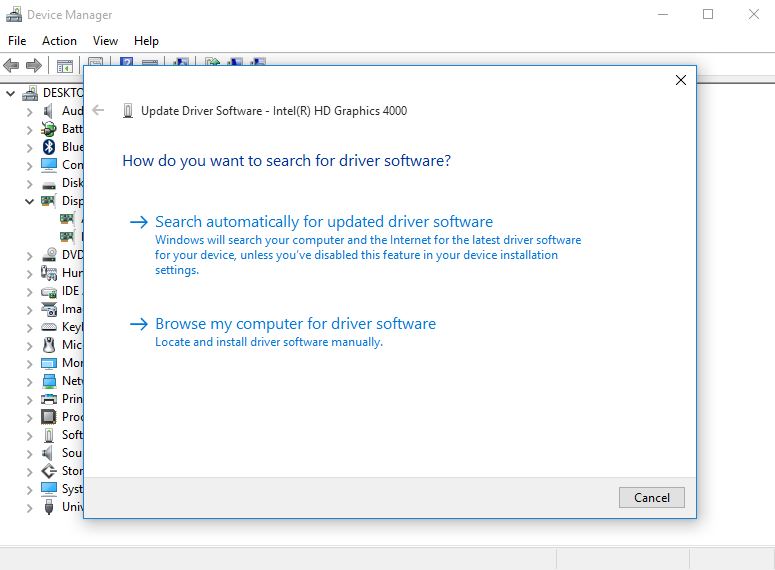
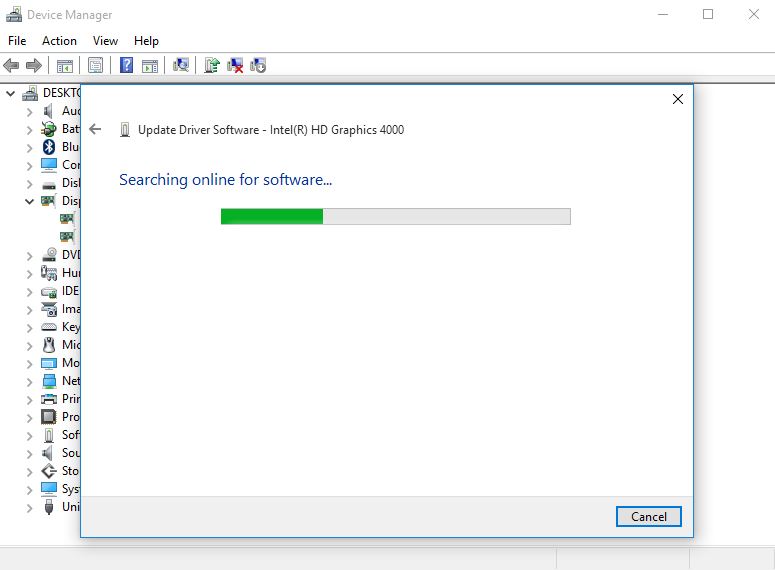
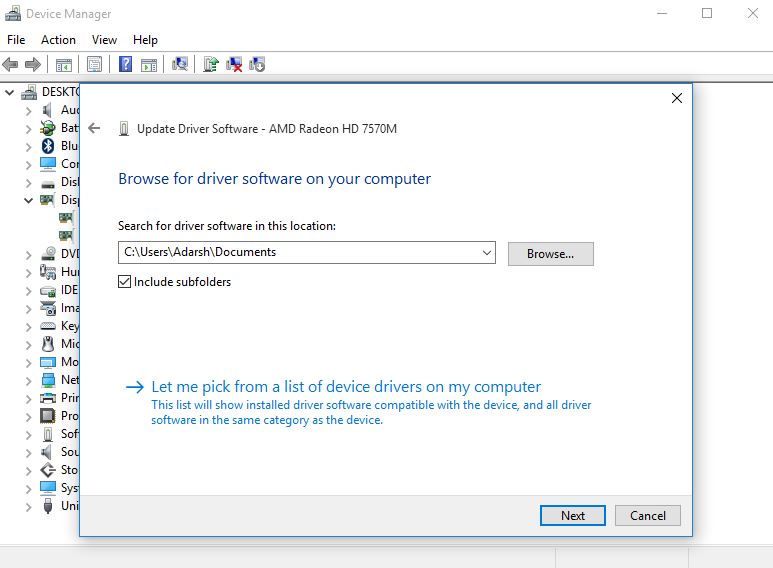
A buggy GPU display driver living on your machine could be the reason why you’re unable to adjust brightness on Windows 10. Most of the time, the Windows 10 brightness problem can be solved by simply updating the GPU drivers. So, follow the steps mentioned below:
Your PC will install the selected driver, and your Windows 10 brightness control issue will be solved. You can check it by increasing and decreasing the brightness of your PC. So, I hope this might have helped you out if your desktop’s or laptop’s brightness is not changing.
Brightness Issues In Windows 10 20H2 Update
Windows updates are infamous for breaking things, and in the latest update, some users have also reported brightness issues in the latest Windows 10 20H2 update (Build: 19044).
In that case, you can choose to roll back the display drivers to the previous and see if that helps. To do that, go to Device Manager > Right-click on your GPU > Go to Properties > Go to Driver Tab. Here, click on the Rollback driver button to restore its previous version (if it’s not faded out).
If that doesn’t work, you should uninstall and then reinstall the GPU drivers from official sources.
Can’t Adjust Brightness On Windows 10 Desktop
The brightness setting on a desktop PC works differently from a laptop because it uses an external display. The brightness of a Windows 10 desktop is not controlled by the OS; you can change it using the buttons and settings provided on your monitor.
If this doesn’t solve the problem, resetting your monitor to default settings may fix the brightness not working issue on Windows 10.
FAQ about Windows 10 Brightness
On Windows 10, you can use the brightness slider in the Action Center to increase or decrease the brightness of your device. There are also dedicated buttons present on the keyboard to do the same.
There could be multiple reasons for this. The adaptive brightness feature is enabled on your PC if it supports it. Otherwise, you can check for a buggy driver using the SFC (System File Checker) tool.
Did you find this solution for Windows 10 brightness control issue helpful? Let us know in the comments below.
If you want to read more Windows 10-related articles, feel free to check out our comprehensiveWindows 10 Guide.
